
STUDIO GUIDE · 9 MIN READ
Meet Stitchplot Studio.
A browser workspace for turning artwork into a counted cross-stitch chart you can edit, size to fabric and export.
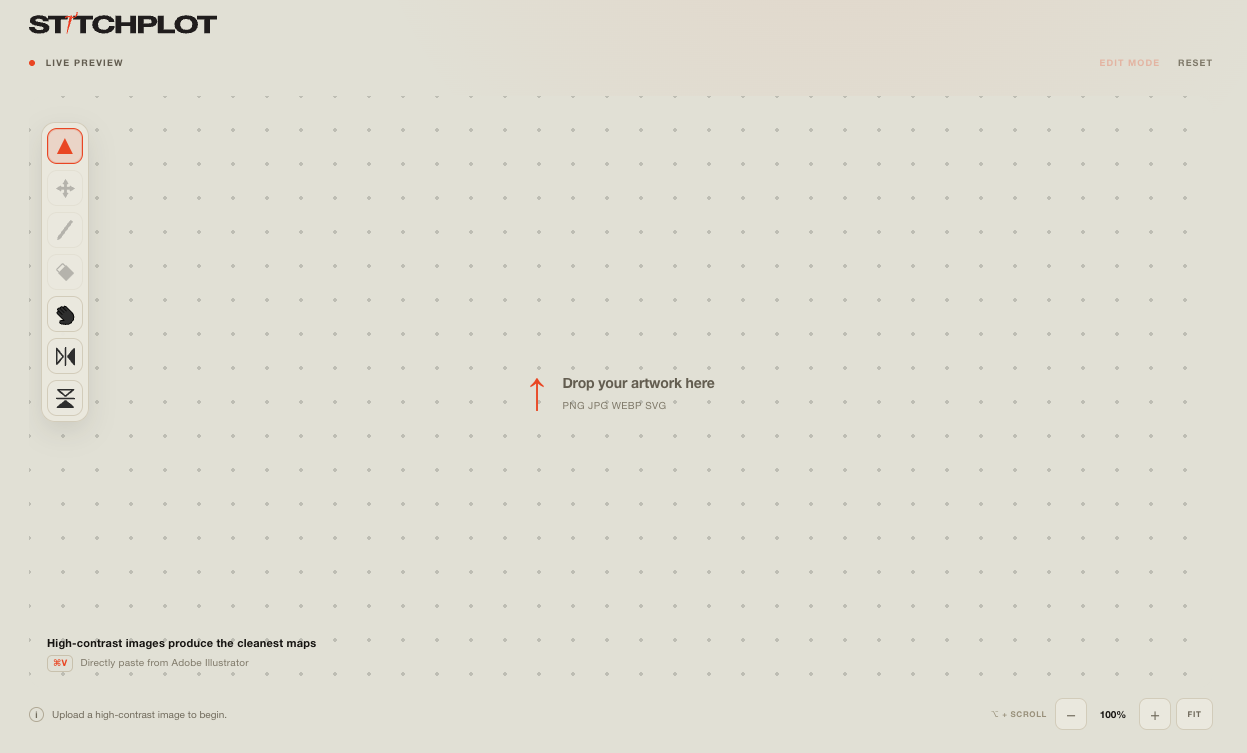
Studio is free to create, edit and export SVG. Use CT mode for counted cross-stitch, set fabric count and finished size, then unlock a print-ready PDF only when you are ready to stitch.
Studio vs the rest of the site
| PAGE | JOB |
|---|---|
| Studio | The workshop — upload, set CT options, edit tiles and export. |
| How it works | A short checklist from image to export. |
| PDF guide | What you get after unlocking the print-ready PDF pack. |
| Pricing | Account credits for print-ready PDFs. |
Use this article for the controls and mental model. Use How it works for the quick path, and the PDF guide when you are ready to stitch from a print pack.
START HERE
First 60 seconds in Studio
- Open Studio. It runs in the browser, with nothing to install.
- Drop a PNG, JPG, WEBP or SVG, or paste from the clipboard — including ⌘V from Adobe Illustrator.
- Watch the live preview update, then refine the chart.
High-contrast artwork makes the cleanest charts. A bold logo or a clear pet crop on a plain background usually converts better than a busy photo with soft edges and clutter. If the preview looks muddy, simplify the source before spending time on fabric settings.
Signed-in users can save private drafts in Library and return to Studio later.
THE COUNTED PATH
CT mode: start here
COUNTED CROSS-STITCH
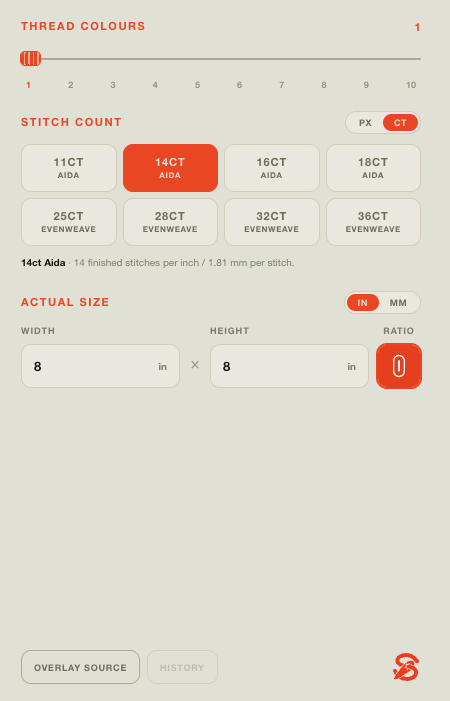
Studio's stitch-count control shows PX | CT. For counted cross-stitch, stay on CT: every filled square on the chart stands for one full cross stitch on fabric.
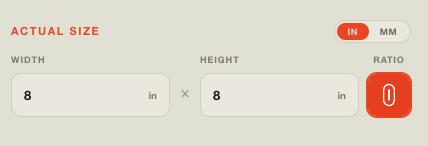
Choose a fabric count, set the finished size, and match the chart colours to DMC floss. This is the main Stitchplot path for making a chart you can follow at the hoop.
- Fabric counts for Aida and evenweave
- Finished size in inches or millimetres
- 1–10 DMC-matched thread colours
Fabric count
Choose from Aida at 11CT, 14CT, 16CT or 18CT, and evenweave at 25CT, 28CT, 32CT or 36CT. The same grid looks physically larger on lower-count fabric and smaller on higher-count fabric.
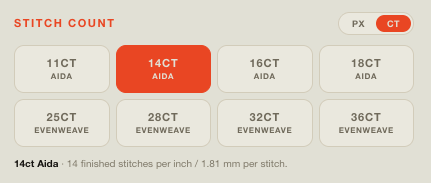
14ct Aida appears often in Stitchplot examples and is a common beginner default, but it is not a universal best choice. Select the count and size that fit your hoop, frame and patience.
Thread colours: 1–10
Fewer colours make a bolder chart with fewer colour changes. More colours preserve more detail but add floss shopping and colour changes. In CT, colours are matched to the nearest DMC codes within that 1–10 limit. For help choosing a colour count, read Choosing DMC colours for cross-stitch.
Editing without fear
When one area is wrong, fix tiles instead of re-uploading the whole image. The Studio tool strip includes:
- Live preview — see the chart as you work
- Edit mode / Reset — enter edit mode or reset edits
- Select, Move, Add and Eraser — correct individual tiles
- Hand — pan the canvas; hold Space for a quick pan
- Mirror left / right and Mirror top / bottom — flip the design
- Zoom — use ⌥ + scroll, − / 100% / +, or FIT
Preview, zoom and stitchability
Stay in live preview while you change fabric count and thread colours. Zoom in to check awkward edges; use FIT to see the whole piece. Before export, ask two practical questions:
- Is the finished size realistic for the fabric count I chose?
- Can I stitch this colour count without drowning in tiny single-stitch islands?
If the answer is no, lower the stitch count or colour count and edit again.
PX mode: short and secondary
PIXEL-STYLE MAPS
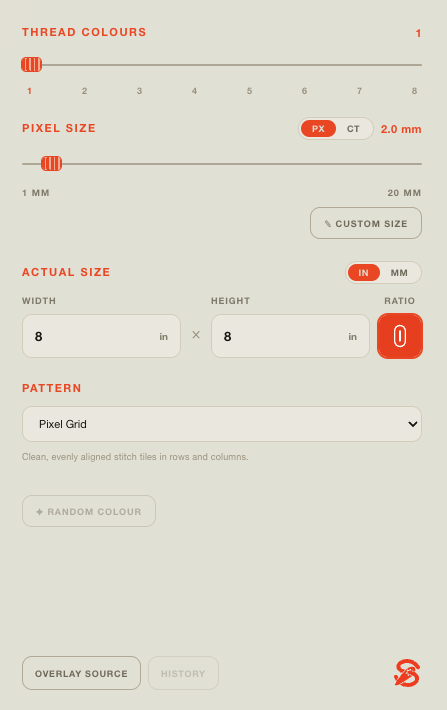
PX is the other mode on the same toggle. Use it when you want a pixel-style stitch map rather than the counted CT path.
PX gives you pixel-size and pattern controls. For most hobby stitchers following this tour, CT is enough; PX is there for alternate map workflows.
This guide focuses on the main counted cross-stitch path rather than cutter or millimetre-embroidery workflows.
Save, Library and export choices
| NEED | WHAT TO USE |
|---|---|
| Keep iterating in the browser | Stay in Studio; sign in to save private drafts in Library. |
| Editable file while designing | Free SVG export. |
| Print-ready pack to stitch from | PDF unlock with account credits. |
Google sign-in includes 3 free PDF credits; HK$29 adds 3 more. There is no subscription. See Pricing for credits, and the PDF guide for the project sheet, DMC key, overview and tiled charts inside each unlock.
Example path
- Start with high-contrast artwork.
- Choose CT and the fabric count you plan to stitch.
- Set a modest stitch and colour count, then spot-edit awkward tiles.
- Check finished size in inches or millimetres.
- Export SVG while drafting; unlock the PDF when you are ready to print and stitch.
What Studio is not
- Not a physical kit — fabric, floss and tools are not included.
- Not an Etsy certification or shop approval.
- Not a promise that every busy photo becomes a perfect chart without editing.
FAQ
Quick answers
Do I need an account to try Studio?
You can create, edit and export editable SVG without buying anything. Library saves and PDF credits use Google sign-in.
CT vs PX in one sentence?
CT is the counted cross-stitch path with fabric counts and DMC-matched colours; PX is an alternate pixel-style map mode in the same Studio UI.
Why does the site push high-contrast images?
Clean edges and clear subjects produce cleaner charts. Soft, busy photos leave more cleanup in edit mode.
Where do DMC codes show up?
In CT, colours are matched to the nearest DMC codes within the 1–10 colour limit. The print-ready PDF expands that into a stitchable floss key.